
|
Do it yourself
| |||
| ||||


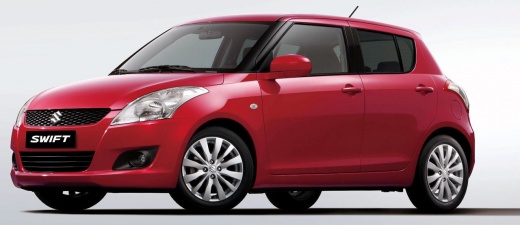
How to Set the Time in the Suzuki Swift?
Model: Suzuki Swift
AZG, MK 5, Rs41
- Years:
2010, 2011, 2012, 2013, 2014, 2015, 2016, 2017
Video tutorial
In this tutorial, you will learn how to adjust the time in the Suzuki Swift, a very simple and quick operation to perform after a flat battery or after switching to British Summer Time. First, turn on the instrument cluster, then press and hold both buttons on the dashboard, located centrally between the speedometer and the rev counter. Once the time starts flashing, you can adjust the hours by rotating the right button in both directions. To switch to minutes and save the setting, simply press the same button.
Updated on 16 May 2026 by ScegliAuto
Related tutorials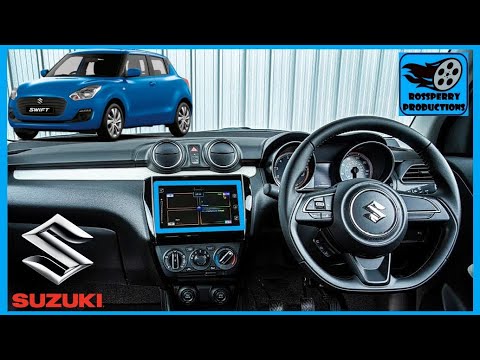
Suzuki Swift
(2017-2024 /
MK 6, A2L)
.. In this tutorial, you will learn how to set the time in the Suzuki Swift, an operation to be carried out after a flat battery or when.. …
Suzuki Swift
(2017-2024 /
MK 6, A2L)
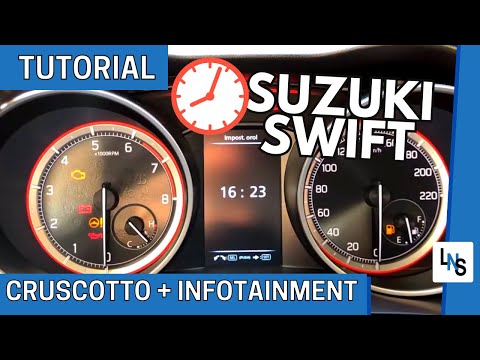
In this tutorial, you will learn how to change the time in a Suzuki Swift, both on the dashboard and in the Infotainment system. For the dashboard, t…
Suzuki Swift
(2010-2017 /
AZG, MK 5, Rs41)
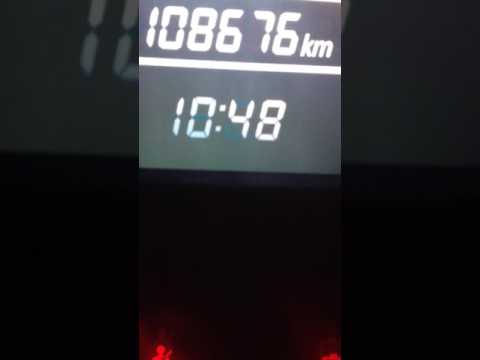
To set the clock on the Suzuki Swift, first turn on the ignition. Once the ignition is on, press both buttons located on the dashboard of the Suzuki …
Other guides you may be interested in
|
How to Enter the Unlock Code for the Radio in the Nissan Micra?
In this tutorial, you will see how to enter the unlock code for the radio in the Nissan Micra, a very simple operation to perform in case of memory loss after replacing the battery. The code can be found in the documents provided at purchase or through one of the various online recovery services. First, turn on the instrument panel, then repeatedly press the "1" button until you reach the first digit of the code. Follow the same logic to enter the remaining 3 digits using the "2", "3", and "4" buttons, and confirm the entry with the up arrow button. by ScegliAuto More videos
|
|
For advertising on this site Write to info@scegliauto.com
ScegliAuto is not responsible for any inaccuracy of the data in the lists. To report any inaccuracy or your business (if you own the business in question), please write to info@scegliauto.com
Number of seconds to generate the page: 0.065
(c) ScegliAuto 2026 - info@scegliauto.com - Privacy policy VAT number: IT01247470535 |
