
|
Do it yourself
| |||
| ||||


How to Replace the Ignition Button on a Piaggio Vespa 125 LX
Model: Piaggio Vespa 125 Lx
Video tutorial
You can replace the ignition button on the Piaggio Vespa 125 LX by levering it out with a tool like a screwdriver, allowing the old button to be completely removed from its housing. Once this component is removed, you can extract the corresponding connector from its seat and disconnect it as well. The new connector can then be attached to the cable and inserted into the appropriate housing: the button can now be correctly fitted onto the connector, and you can check that everything functions correctly.
Posted on 27 March 2026 by ScegliAuto
Related tutorials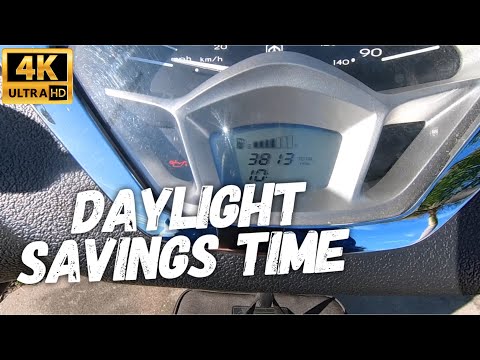
Vespa 125 Lx
To set the clock on the Piaggio Vespa 125 LX, insert the ignition key into the lock and turn it to activate the dashboard: then, press and hold the M…

Vespa 125 Lx
To replace the ignition switch on the Piaggio Vespa 125 LX, remove the cover surrounding the ignition switch to access the screws securing it. Comple…

Vespa 125 Lx
The following steps will allow us to change the time on the display of the instrument panel of the Piaggio Vespa 125 LX scooter. First, turn on the i…
|
How to Set the Time on a Kymco DTX360?
To set the time on a Kymco DTX360, follow these steps. First, turn on the scooter and ensure it is in time display mode on the dashboard. Once you find this mode, press and hold the button for setting the time, located on the scooter's handlebars. After a few seconds, the display will start to flash, indicating that you can now adjust the time. Use the adjustment buttons to increase or decrease the hour until you reach the desired time. When you have set the correct time, press the time setting button again to confirm your selection. The display will stop flashing and the time will be set correctly. Be sure to consult the owner's manual for specific instructions for your Kymco DTX360 model, as the procedure may vary slightly. by ScegliAuto More videos
|
|
For advertising on this site Write to info@scegliauto.com
ScegliAuto is not responsible for any inaccuracy of the data in the lists. To report any inaccuracy or your business (if you own the business in question), please write to info@scegliauto.com
Number of seconds to generate the page: 0.005
(c) ScegliAuto 2026 - info@scegliauto.com - Privacy policy VAT number: IT01247470535 |
