
|
Do it yourself
| |||
| ||||



How to Set the Clock on Renault Clio IV
Model: Renault Clio
Clio IV, Clio 4, MK 4
- Years:
2012, 2013, 2014, 2015, 2016, 2017, 2018, 2019
Video tutorial
Let's see how to adjust the clock on the Renault Clio IV: press and hold the side button (the one on the dashboard, or near the display, depending on the version) for about 3 seconds. The hour will start to flash. Move the same button up or down to increase or decrease the hour. After waiting for 3 to 5 seconds, the car will automatically switch to minute adjustment. Adjust them in the same way with the button. After another 3 to 5 seconds of waiting, the clock will stop flashing and the time will be set automatically. On some versions, instead of the side button, there may be a joystick that moves up and down instead of pressing.
Posted on 8 April 2026 by ScegliAuto
Related tutorials
Renault Clio
(2012-2019 /
Clio IV, Clio 4, MK 4)
This article explains how to set the time on the Renault Clio 4. The procedure takes less than 1 minute and does not require any software or tools. T…

Renault Clio
(2005-2013 /
Clio 3, MK 3, Clio III)
To set the clock on the Renault Clio, turn on the instrument panel and also switch on the radio, as the clock will be set using its controls. Press a…
Renault Clio
(2012-2019 /
Clio IV, Clio 4, MK 4)
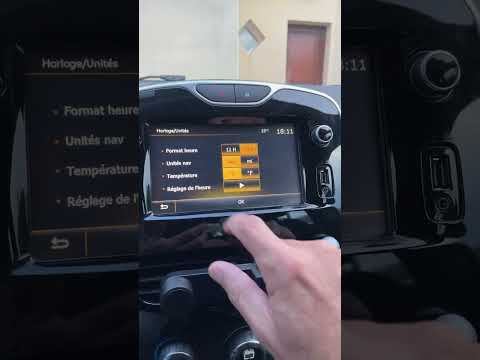
In this tutorial, you will learn how to set the time in the Renault Clio, a very simple and quick operation to perform, for example, after disconnect…
Other guides you may be interested in
|
How to Set the Time on an Audi A6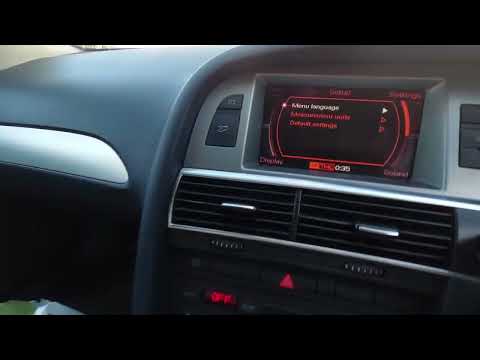
Briefly, we will see the instructions to set the time on the Audi A6 by following these simple steps. First, get inside the vehicle and turn on the instrument cluster; then press the settings button and navigate to the time option to confirm your choice, as shown in the video. At this point, set the correct time and format, then exit the settings menu to save the changes made; finally, start the engine and ensure that the time has been set correctly! by ScegliAuto More videos
|
|
For advertising on this site Write to info@scegliauto.com
ScegliAuto is not responsible for any inaccuracy of the data in the lists. To report any inaccuracy or your business (if you own the business in question), please write to info@scegliauto.com
Number of seconds to generate the page: 0.060
(c) ScegliAuto 2026 - info@scegliauto.com - Privacy policy VAT number: IT01247470535 |
