
|
Do it yourself
| |||
| ||||


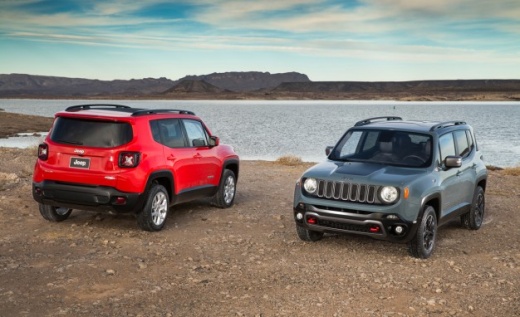
How to set the correct date on the Jeep Renegade
Model: Jeep Renegade
- Years:
2014, 2015, 2016, 2017, 2018, 2019, 2020, 2021, 2022, 2023
Video tutorial
In this new guide dedicated to all of you who own a Jeep Renegade, we will explain the steps you need to follow if you want to manually change the displayed date. First of all, you need to turn on the instrument panel, then locate the "More" button located to the right of the radio display and press it. Then click on the settings icon and select the "Clock & Date" option. Finally, click on "Set date" and proceed with manually setting the correct date. Exit the settings menu to save the changes made and you're done.
Posted on 9 June 2025 by ScegliAuto
Related tutorials
Jeep Renegade
(2014-2026 /
MK 1, BU, 520)
The Jeep Renegade allows the owner to set the time and date from the settings menu, which can be accessed by pressing the OK button on the steering w…

Jeep Renegade
(2014-2026 /
MK 1, BU, 520)
The video provides an overview of all the settings available on the main display of the Jeep Renegade. We are referring to the controls adjustable th…
Jeep Renegade
(2014-2026 /
MK 1, BU, 520)
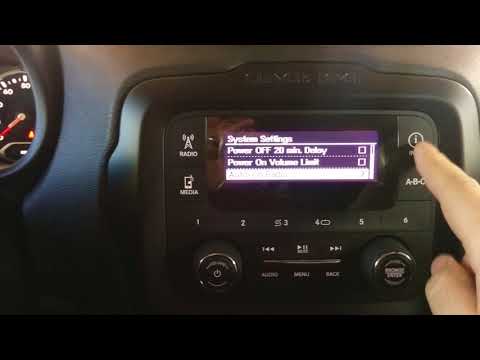
In this tutorial, you will see how to set the time in the Jeep Renegade, a task to perform after switching to daylight saving time or after a flat ba…
Other guides you may be interested in
|
How to Reset the Tire Pressure Light on a MG ZS?
On the instrument cluster of the MG ZS, the tire pressure light that appears can be reset by inflating the tires to the correct pressure: this value will be indicated on the sticker attached to the driver's door pillar. Once the tires have been properly inflated, you can turn on the instrument cluster and navigate through the menu until you find the option that indicates tire pressure: if this screen shows the new values, the light will turn off; otherwise, you will need to drive for a few miles so that the sensors can read the new values and turn off the light afterward. by ScegliAuto More videos
|
|
For advertising on this site Write to info@scegliauto.com
ScegliAuto is not responsible for any inaccuracy of the data in the lists. To report any inaccuracy or your business (if you own the business in question), please write to info@scegliauto.com
Number of seconds to generate the page: 0.050
(c) ScegliAuto 2026 - info@scegliauto.com - Privacy policy VAT number: IT01247470535 |
