
|
Do it yourself
| |||
| ||||


How to adjust the time on the Suzuki Swift
Model: Suzuki Swift
MK 6, A2L
- Years 2017-2024
In a few simple steps, we will see how to adjust the time on the display of the instrument panel of the Suzuki Swift. First of all, we get into the car and start the instrument panel; then we press the info button on the left side of the steering wheel for about five seconds, as shown in the video. At this point, we scroll through the options with the arrow buttons until we reach the one for the time; we set the hour first and then the minutes, selecting the format if necessary, exiting the settings menu to save the changes made.
Posted on 7 May 2024 by ScegliAuto
Video tutorial
Related tutorials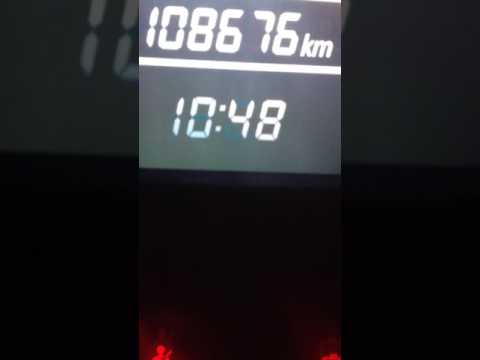
Suzuki Swift
(2010-2017 /
Rs41, AZG, MK 5)
To set the clock on the Suzuki Swift, first turn on the ignition. Once the ignition is on, press both buttons located on the dashboard of the Suzuki …
Suzuki Swift
(2017-2024 /
MK 6, A2L)
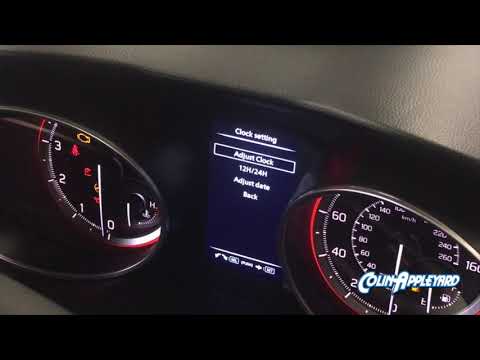
In this short and simple guide, you will learn how to adjust and set the correct time on the Suzuki Swift. First, get inside the vehicle and turn on …

Suzuki Swift
(2010-2017 /
Rs41, AZG, MK 5)
Following the instructions in this guide, we will see how to set the time on the display of the Suzuki Swift instrument panel. First, we get into the…
Other guides you may be interested in
|
How to Connect the Cables to the Battery of the Citroen Xsara Picasso?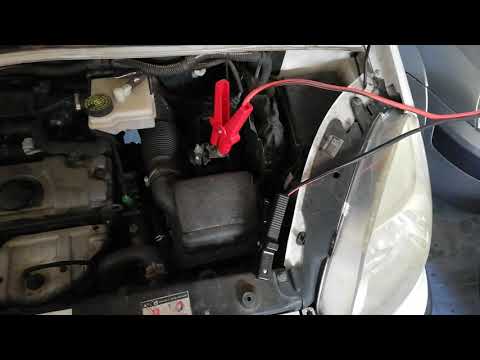
In this tutorial, you will see how to connect the cables to the battery of the Citroen Xsara Picasso, useful if you need to recharge it or perform an emergency start. First, ensure the key is not inserted, then open the bonnet and move to the front of the left headlamp. Next, locate the bolt just behind the filter box and connect the positive terminal clamp to it. Now you can connect the negative terminal to any point on the chassis, such as the indicated point. Once the operation is complete, ensure you disconnect the negative first and then the positive. by ScegliAuto More videos
|
|
For advertising on this site Write to info@scegliauto.com
ScegliAuto is not responsible for any inaccuracy of the data in the lists. To report any inaccuracy or your business (if you own the business in question), please write to info@scegliauto.com
Number of seconds to generate the page: 0.073
(c) ScegliAuto 2026 - info@scegliauto.com - Privacy policy VAT number: IT01247470535 |
