
|
Do it yourself
| |||
| ||||


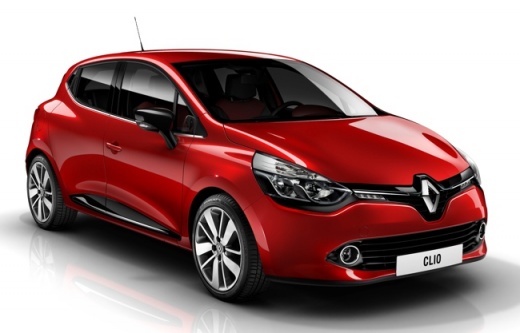
How to Update the Renault R-Link 1
Model: Renault Clio
Clio IV, Clio 4, MK 4
- Years:
2012, 2013, 2014, 2015, 2016, 2017, 2018, 2019
Video tutorial
Learn how to update the Renault R-Link 1 system: install the R-Link Toolbox on your computer (if you haven't already), then remove the SD card from the car. Access the R-Link store website with your Renault account, go to "Updates" and select those available for your vehicle, insert the SD card into your computer and open the R-Link Toolbox, then start downloading the updates and wait for completion, which will vary based on file size. After that, remove the SD card from the computer. Go to the car, start the engine - which should remain on for the entire procedure - insert the SD card into the R-Link slot and turn on the system: the updates will install automatically. Even if the screen remains black, do not remove the SD card. Then synchronise the applications by returning to the R-Link store from your computer, selecting "My Products/Manage"; choose the apps to synchronise and click "Synchronise" and then transfer them to the SD card, which you removed from the vehicle. Repeat the procedure in the car.
Posted on 28 February 2026 by ScegliAuto
Related tutorials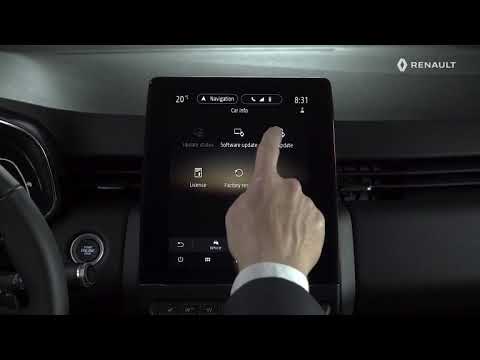
Renault Clio
(2019-2026 /
Clio V, Clio 5)
In this video, see how to update the maps on the Renault Clio V using the Easy Link system from the multimedia screen. From the main screen, press th…

Renault Clio
(2012-2019 /
Clio IV, Clio 4, MK 4)
To update the navigation maps on a Renault Clio IV, you need to download the updated map (usually from the official Renault website or the dedicated …
Renault Clio
(2012-2019 /
Clio IV, Clio 4, MK 4)
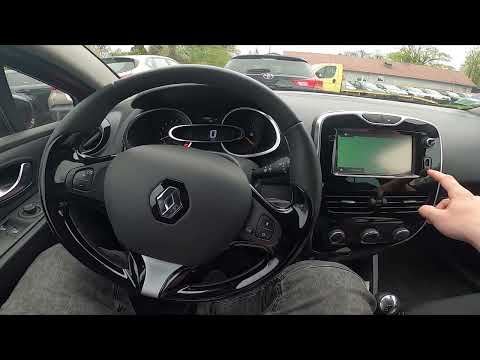
In this video, see how to update the maps of the Renault Clio IV: you will need to have it installed on an external memory that can be connected to t…
Other guides you may be interested in |
Frequently Asked QuestionsHow to Reset the AdBlue Warning Light on a Peugeot Boxer
To reset the AdBlue system on a 2018 Peugeot Boxer, follow these steps: Start the engine and ensure the vehicle is parked in a well-ventilated area. Locate the "MENU" button on the dashboard or steering wheel controls. Press and hold the "MENU" button until the menu options appear on the display. Use the arrow buttons or scroll wheel to access the "Vehicle Settings" or "Settings" menu. Select the "AdBlue" or "AdBlue System" option. Look for the "Recharge" or "Reset" option in the AdBlue menu. Once you find the reset option, select it and confirm your choice when prompted. The system will be reset, and a confirmation message may appear on the display. Turn off the engine and wait a few seconds. Restart the engine and check that the AdBlue system has been reset. by ScegliAuto More videos
|
|
For advertising on this site Write to info@scegliauto.com
ScegliAuto is not responsible for any inaccuracy of the data in the lists. To report any inaccuracy or your business (if you own the business in question), please write to info@scegliauto.com
Number of seconds to generate the page: 0.024
(c) ScegliAuto 2026 - info@scegliauto.com - Privacy policy VAT number: IT01247470535 |
