
|
Do it yourself
| |||
| ||||


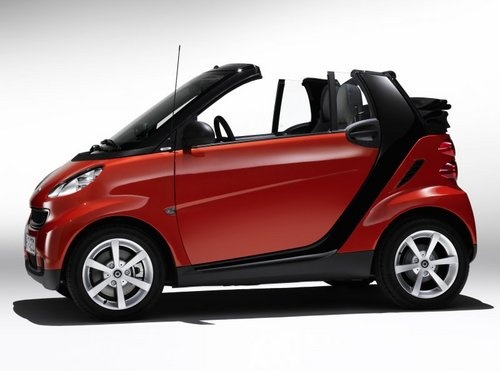
How to Install the Rev Counter and Clock on a Smart Fortwo
Model: Smart Smart
451
- Years:
2007, 2008, 2009, 2010, 2011, 2012, 2013, 2014, 2015
Video tutorial
In this guide, you will find the instructions to install the rev counter and clock on the dashboard of a Smart Fortwo. First, get inside the cabin and start by removing the upper plastic cover of the dashboard, then modify it to allow for the installation of the rev counter and clock; connect the instruments to the appropriate connections, then reassemble all dashboard elements, as shown in the video. At this point, start the engine and check the correct operation of the rev counter and clock!
Posted on 21 March 2026 by ScegliAuto
Related tutorials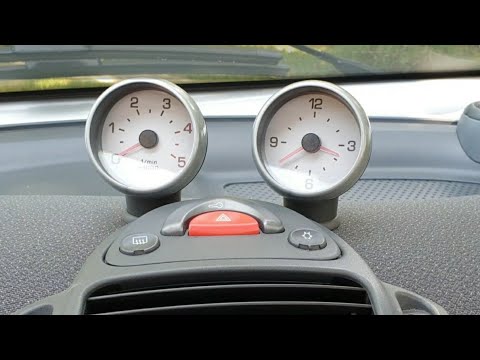
Smart
(1998-2007 /
450)
In today's video, see how to install the rev counter and clock in the first series of the Smart Fortwo. These accessories are not standard in the Ger…
Smart
(2007-2015 /
451)
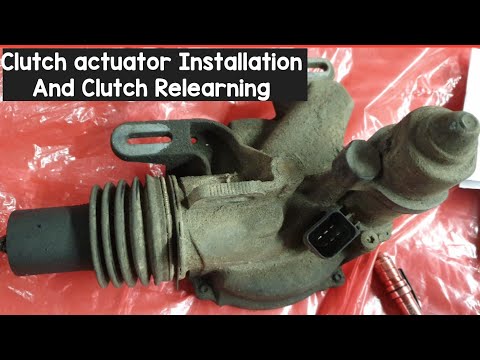
In today's tutorial video, you will learn how to install the clutch actuator on the Smart Fortwo 451 by following the instructions below. First, lift…

Smart
(1998-2007 /
450)
Today we will discover the instructions that will allow us to set the time on the clock located on the dashboard of the Smart Fortwo, in simple and q…
Other guides you may be interested in
|
Frequently Asked QuestionsHow to Reset the AdBlue Warning Light on a Peugeot Boxer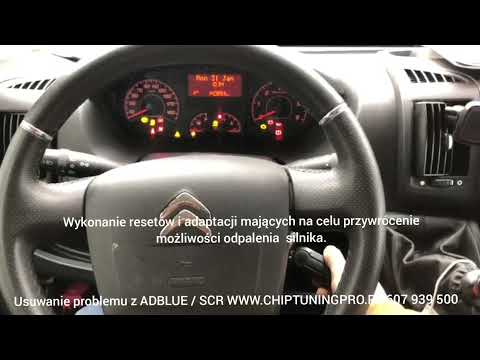
To reset the AdBlue system on a 2018 Peugeot Boxer, follow these steps: Start the engine and ensure the vehicle is parked in a well-ventilated area. Locate the "MENU" button on the dashboard or steering wheel controls. Press and hold the "MENU" button until the menu options appear on the display. Use the arrow buttons or scroll wheel to access the "Vehicle Settings" or "Settings" menu. Select the "AdBlue" or "AdBlue System" option. Look for the "Recharge" or "Reset" option in the AdBlue menu. Once you find the reset option, select it and confirm your choice when prompted. The system will be reset, and a confirmation message may appear on the display. Turn off the engine and wait a few seconds. Restart the engine and check that the AdBlue system has been reset. by ScegliAuto More videos
|
|
For advertising on this site Write to info@scegliauto.com
ScegliAuto is not responsible for any inaccuracy of the data in the lists. To report any inaccuracy or your business (if you own the business in question), please write to info@scegliauto.com
Number of seconds to generate the page: 0.078
(c) ScegliAuto 2026 - info@scegliauto.com - Privacy policy VAT number: IT01247470535 |
