
|
Do it yourself
| |||
| ||||


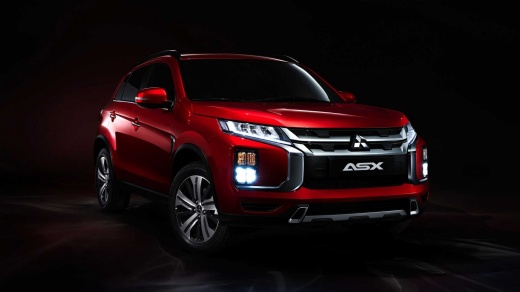
How to adjust the clock on the dashboard instrument panel of the Mitsubishi ASX
Model: Mitsubishi Asx
MK 1
- Years:
2010, 2011, 2012, 2013, 2014, 2015, 2016, 2017, 2018, 2019, 2020, 2021
Video tutorial
Today we will explain how to adjust the digital clock on the dashboard computer of the Mitsubishi Asx independently. To adjust the clock, we need to access the settings menu by pressing the menu button on the radio. By rotating the volume knob, we can navigate within the settings menu until we select the "time settings" option. Press the volume knob to access the setting and by rotating the knob itself, we adjust the hours and immediately after the minutes. After updating the clock setting, we return to the main menu and if necessary, restart the instrument panel.
Posted on 20 November 2025 by ScegliAuto
Related tutorials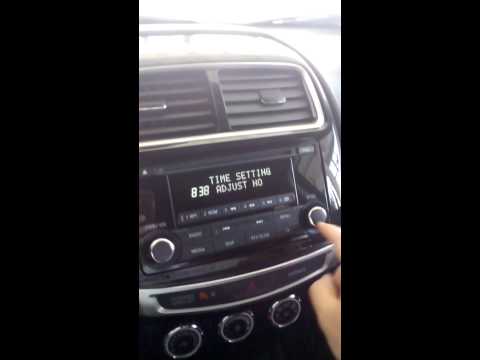
Mitsubishi Asx
(2010-2023 /
MK 1)
Briefly follow these steps to set the clock on the Mitsubishi ASX. First, get into the vehicle and turn on the instrument panel; then press the menu …

Mitsubishi Asx
(2010-2023 /
MK 1)
In this tutorial, you will see how to reset the on-board computer in a Mitsubishi ASX, a very simple and quick operation, which can be done as a trou…

Mitsubishi Asx
(2010-2023 /
MK 1)
This guide briefly explains how to reset the tyre pressure monitoring system (TPMS) warning light on the Mitsubishi ASX. First, get in the vehicle an…
Other guides you may be interested in
|
How to reset the tyre pressure warning light on the Kia Niro EV?
To reset the tyre pressure warning light on the Kia Niro EV, inflate the tyres until they reach the correct pressure value. This value is indicated on the sticker attached to the driver's door pillar. Once the tyres are inflated, turn on the instrument cluster to check that the warning light has completely disappeared from the display. If it is still present, you may need to drive for a few miles to ensure it disappears completely from the screen. by ScegliAuto More videos
|
|
For advertising on this site Write to info@scegliauto.com
ScegliAuto is not responsible for any inaccuracy of the data in the lists. To report any inaccuracy or your business (if you own the business in question), please write to info@scegliauto.com
Number of seconds to generate the page: 0.063
(c) ScegliAuto 2026 - info@scegliauto.com - Privacy policy VAT number: IT01247470535 |
