
|
Do it yourself
| |||
| ||||



How to Set the Clock on a Toyota Highlander?
Model: Toyota Highlander
Xu40
- Years:
2008, 2009, 2010, 2011, 2012, 2013
Video tutorial
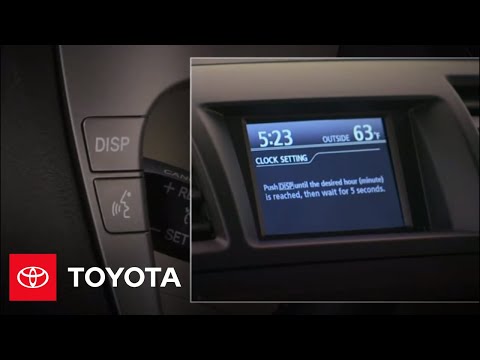
To set the clock on a Toyota Highlander, turn on the ignition and then press the DISP button located on the right side of the steering wheel: this allows you to select the "Clock" option on the central display by pressing the DISP button again. At this point, continue to hold the DISP button until the hour is changed correctly; then release the button and wait a few seconds for the minutes to start flashing. These can now be modified following the same procedure.
Updated on 20 July 2026 by ScegliAuto
Related tutorials
Toyota Highlander
(2014-2019 /
Xu50)
This brief and simple guide provides instructions for adjusting the clock on the Toyota Highlander. First, get into the vehicle and turn on the instr…

Toyota Highlander
(2020-2026 /
Xu70)
Below are the instructions that will allow you to set the clock on the Toyota Highlander in simple steps. First, get in the vehicle and turn on the i…
Toyota Highlander
(2008-2013 /
Xu40)
To set the clock on the Toyota Highlander, turn on the instrument panel to navigate through the menu that will appear on the central display of the d…
Other guides you may be interested in
|
How to Remove the Rear Seat of a Hyundai Tucson?
To remove the rear seat of a Hyundai Tucson, follow these steps. Start by moving the front seats to their most forward position to gain space. Next, locate the release lever on the underside of the rear seat, near the floor. Press this lever down while pulling the seat upwards to unlock it from the anchor pins. Once unlocked, tilt the seat upwards and forwards to remove it from its position. Repeat this process for both sides of the rear seat. Be careful of any electrical cables or components that may be connected to the seat during removal. Once the rear seat is removed, the disassembly is complete. by ScegliAuto More videos
|
|
For advertising on this site Write to info@scegliauto.com
ScegliAuto is not responsible for any inaccuracy of the data in the lists. To report any inaccuracy or your business (if you own the business in question), please write to info@scegliauto.com
Number of seconds to generate the page: 0.065
(c) ScegliAuto 2026 - info@scegliauto.com - Privacy policy VAT number: IT01247470535 |
