
|
Do it yourself
| |||
| ||||


How to Replace the Rear Brake Light Bulb on a Chevrolet Camaro MK5
Model: Chevrolet Camaro
MK 5
- Years:
2007, 2008, 2009, 2010, 2011, 2012, 2013, 2014, 2015, 2016
Video tutorial
Here’s how to replace the rear light bulb (brake/indicator) on a Chevrolet Camaro MK5 (2010/2015). To access the light assembly, open the boot and locate the three plastic clips on the panel near the light. Use a tool to lever them out of their slots and remove them completely. Take off the plastic panel to access the bulbs, rotate the socket counter-clockwise to remove it, pull out the old bulb, and insert the new one (type 3157; available on Amazon with code B0CB1SBG1M for £3.66, plus £6.50 delivery). Reinsert the socket and rotate it clockwise to secure it. To reassemble, reposition the panel and press the three clips back in.
Posted on 25 February 2026 by ScegliAuto
Related tutorials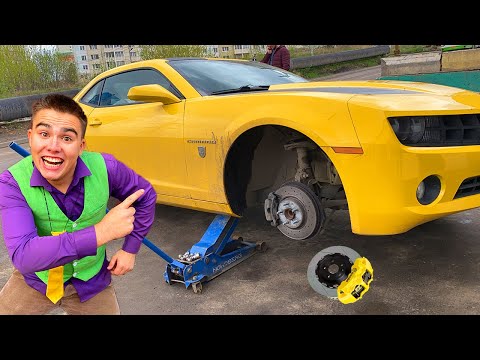
Chevrolet Camaro
(2007-2016 /
MK 5)
Before you start, ensure that your Camaro is in first gear and the handbrake is engaged. Begin by lifting the car using the appropriate jack provided…
Chevrolet Camaro
(2007-2016 /
MK 5)
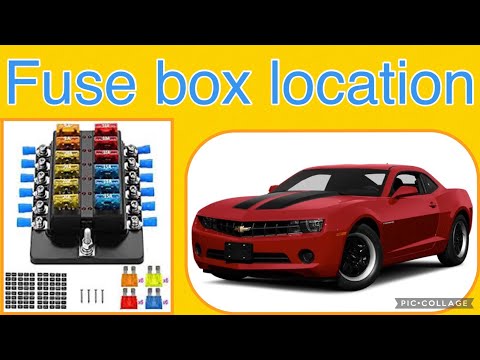
If you are looking for the main fuse box in your 2013 Chevrolet Camaro, follow these instructions to locate it quickly and safely. First, completely …

Chevrolet Camaro
(2007-2016 /
MK 5)
Let's see how to reset the service light on a 2012 Chevrolet Camaro (MK5): insert the key and turn it to the "accessory" position, then go to the veh…
Other guides you may be interested in
|
How to reset the tyre pressure warning light on the Kia Niro EV?
To reset the tyre pressure warning light on the Kia Niro EV, inflate the tyres until they reach the correct pressure value. This value is indicated on the sticker attached to the driver's door pillar. Once the tyres are inflated, turn on the instrument cluster to check that the warning light has completely disappeared from the display. If it is still present, you may need to drive for a few miles to ensure it disappears completely from the screen. by ScegliAuto More videos
|
|
For advertising on this site Write to info@scegliauto.com
ScegliAuto is not responsible for any inaccuracy of the data in the lists. To report any inaccuracy or your business (if you own the business in question), please write to info@scegliauto.com
Number of seconds to generate the page: 0.074
(c) ScegliAuto 2026 - info@scegliauto.com - Privacy policy VAT number: IT01247470535 |
