
|
Do it yourself
| |||
| ||||


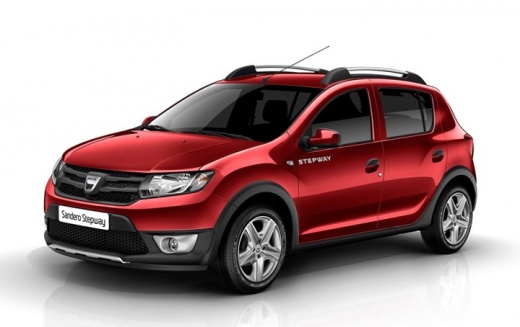
How to modify the onboard computer interface of the Dacia Stepway.
Model: Dacia Sandero
B8
- Years:
2012, 2013, 2014, 2015, 2016, 2017, 2018, 2019, 2020
Video tutorial
Today we will explain how to modify the onboard computer interface of the Dacia Sandero. To perform this operation, we need to access the Dacia website to download the link for the update of the onboard computer backgrounds for the Sandero. After downloading the update, we will insert it into a USB stick. We then insert the USB stick into the designated port and allow the update to be set automatically on the onboard computer. We will restart the instrument cluster to complete the operation; once the onboard computer is started, it will display the new interface with permanent changes.
Posted on 3 January 2026 by ScegliAuto
Related tutorials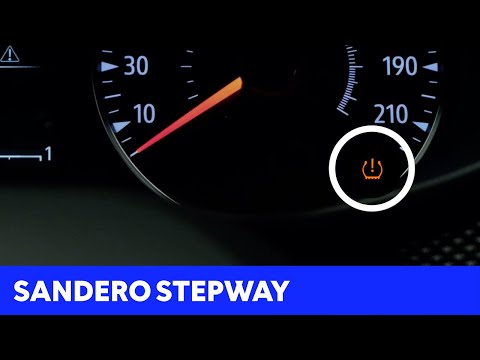
Dacia Sandero
(2021-2026 /
MK 3)
In today's video, you will see how to reset the tyre pressure light in a Dacia Sandero Stepway. This tutorial also applies to other models in the Rom…
Dacia Sandero
(2012-2020 /
B8)
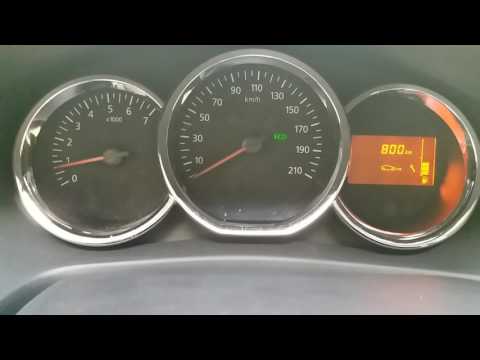
In today's video, you will see how the instrument cluster works in the Dacia Sandero Stepway. To access the onboard computer, use the button on the r…
Dacia Sandero
(2012-2020 /
B8)
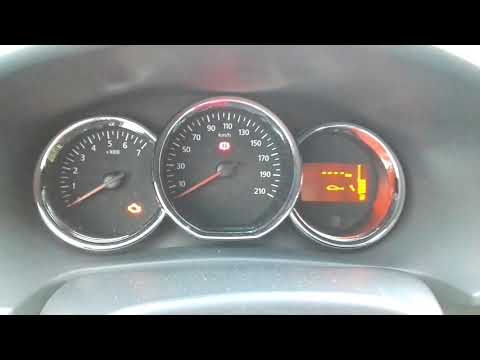
As we all know, car manufacturers require scheduled maintenance after a certain mileage or time, which includes changing the engine oil, air filters,…
Other guides you may be interested in
|
How to Remove the Rear Seat of a Hyundai Tucson?
To remove the rear seat of a Hyundai Tucson, follow these steps. Start by moving the front seats to their most forward position to gain space. Next, locate the release lever on the underside of the rear seat, near the floor. Press this lever down while pulling the seat upwards to unlock it from the anchor pins. Once unlocked, tilt the seat upwards and forwards to remove it from its position. Repeat this process for both sides of the rear seat. Be careful of any electrical cables or components that may be connected to the seat during removal. Once the rear seat is removed, the disassembly is complete. by ScegliAuto More videos
|
|
For advertising on this site Write to info@scegliauto.com
ScegliAuto is not responsible for any inaccuracy of the data in the lists. To report any inaccuracy or your business (if you own the business in question), please write to info@scegliauto.com
Number of seconds to generate the page: 0.039
(c) ScegliAuto 2026 - info@scegliauto.com - Privacy policy VAT number: IT01247470535 |
