
|
Do it yourself
| |||
| ||||


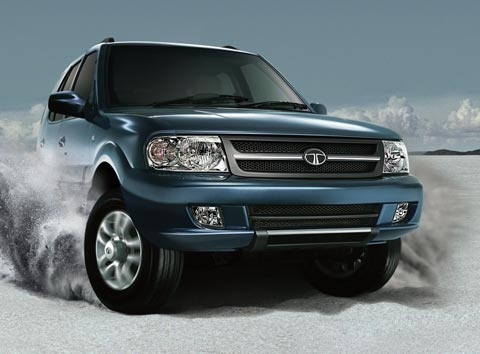
How to Remove the Brake Pads from Tata Safari
Model: Tata Safari
MK 1
- Years:
1998, 1999, 2000, 2001, 2002, 2003, 2004, 2005, 2006, 2007, 2008, 2009
Video tutorial
Is your vehicle not braking well? Let's look at the removal and replacement of the brake pads from the Tata Safari. Loosen the pins with a telescopic spanner and lift to a comfortable height for access. Unscrew the pins and remove the wheel, then start unscrewing the pins of the brake caliper (using a socket spanner) to detach it from its support. Use a socket spanner to relieve the pressure of the oil from the caliper: remove the caliper and the pads from inside it. Fit the new brake pad kit inside the brake caliper. At the end of the installation, test the braking of the car.
Updated on 7 April 2026 by ScegliAuto
Related tutorials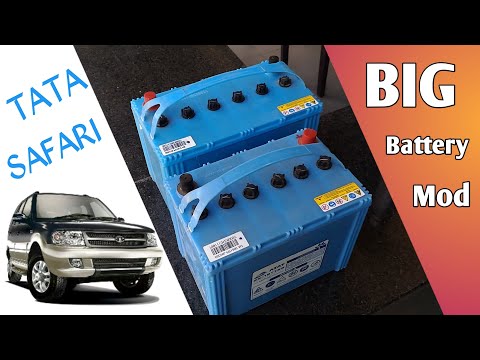
Tata Safari
(1998-2019 /
MK 1)
To replace the battery in a Tata Safari, open the bonnet to access the components inside the engine bay. The battery is located near the left front h…
Tata Safari
(1998-2019 /
MK 1)
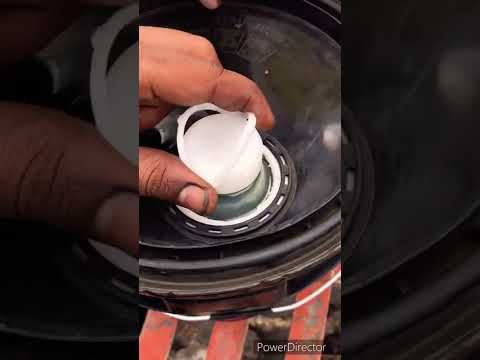
In this new guide dedicated to your Tata Safari, discover how to correctly change the engine oil and the corresponding filter. First, turn off your v…
Tata Safari
(1998-2019 /
MK 1)
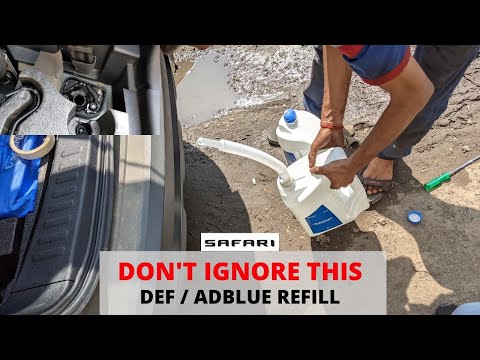
To reset the AdBlue light on a Tata Safari, you need to add the additive liquid into the tank, which is located at the bottom of the car. You can loc…
Other guides you may be interested in
|
How to Reset the Tyre Pressure Warning Light on a Kia Rio?
The tyre pressure warning light displayed on the instrument cluster of the Kia Rio can be reset by inflating the tyres until they reach the recommended pressure value: this value is indicated on the sticker affixed to the driver's door pillar. Once all tyres have been inflated to the recommended pressure, turn on the ignition to check that the light has disappeared: if it is still present, it may be necessary to drive for a few miles, allowing the sensors to work and thus turning off the light. by ScegliAuto More videos
|
|
For advertising on this site Write to info@scegliauto.com
ScegliAuto is not responsible for any inaccuracy of the data in the lists. To report any inaccuracy or your business (if you own the business in question), please write to info@scegliauto.com
Number of seconds to generate the page: 0.044
(c) ScegliAuto 2026 - info@scegliauto.com - Privacy policy VAT number: IT01247470535 |
